Getting started
Signing in and finding your way
GoMed is one system with one login. Every app opens on its own dashboard; the app drawer groups them the way the hospital is organised; every record carries a chatter for messages, followers and scheduled activities. Arabic and English switch per user.
For:Everyone
Where:https://<your-hospital>.gomed.goliveict.com
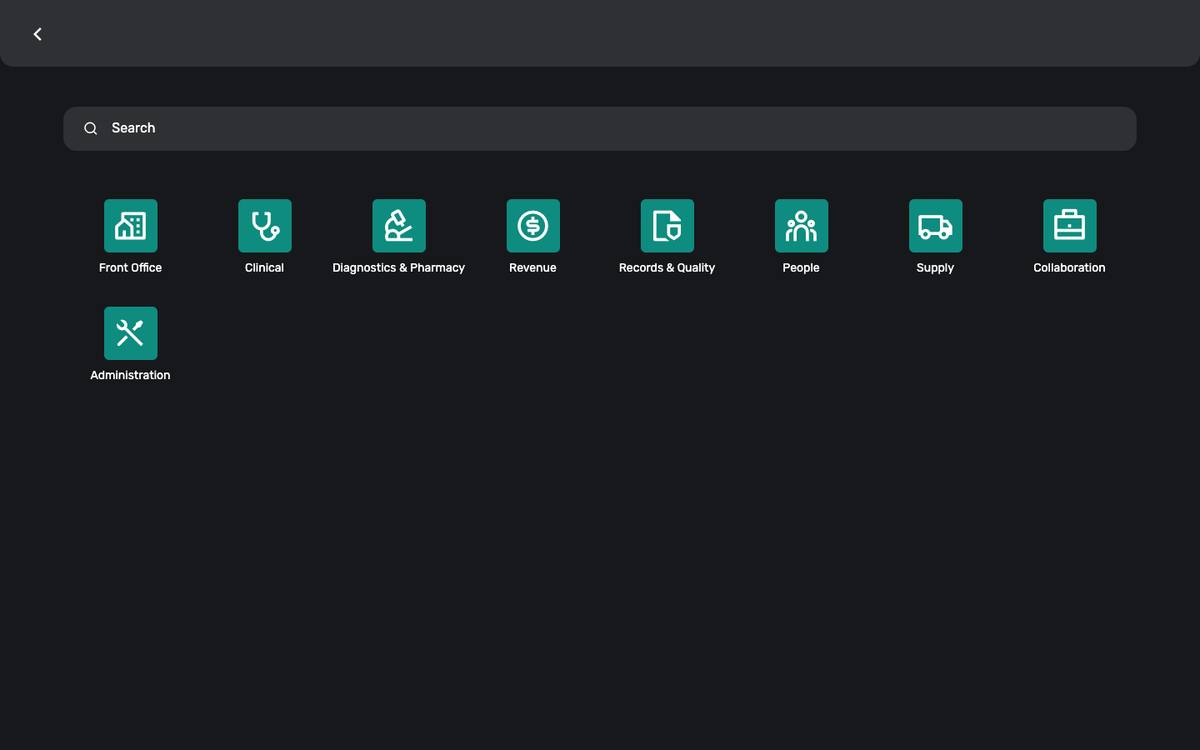
The app drawer: nine groups, one glyph per app.
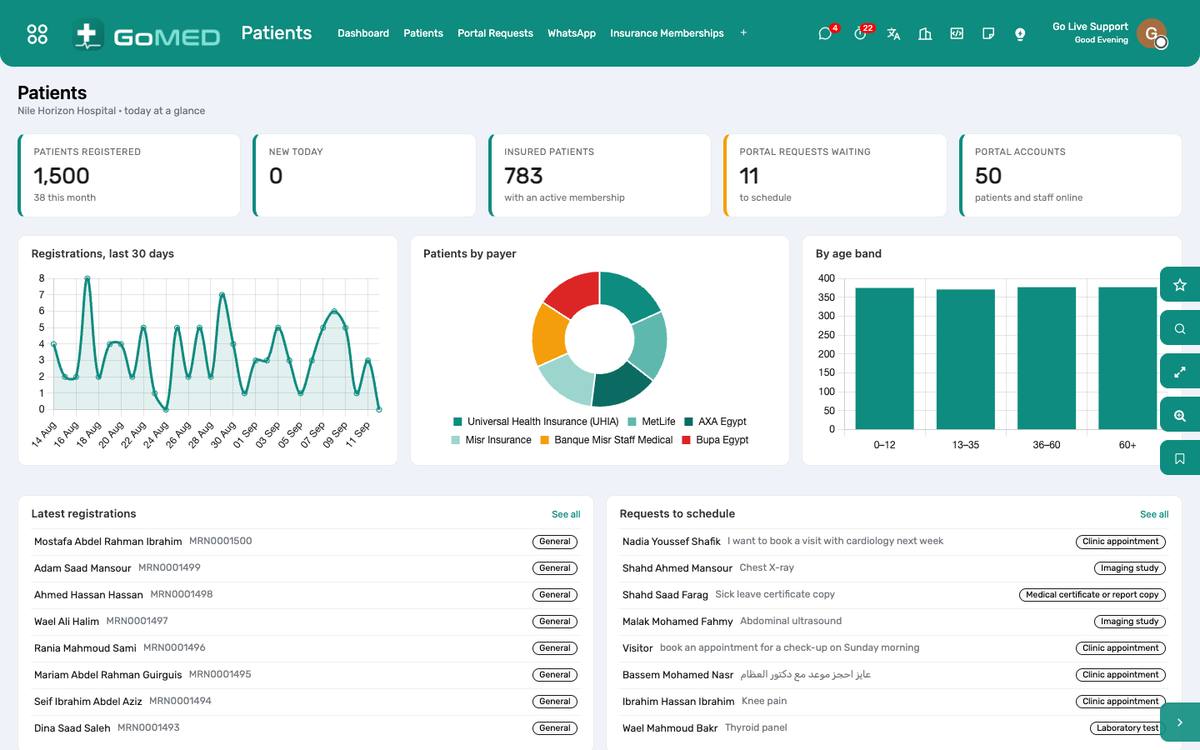
Every app opens on a dashboard; every card is a click away from the list behind it.
How to
Sign in
- Open the hospital’s address in Chrome, Edge, Safari or Firefox.
- Enter the e-mail and password your administrator gave you.
- The first screen is the dashboard of your main app; the grid icon top-left opens the app drawer.
Lost your password? Use “Reset password” on the login page; the link arrives by e-mail. An administrator can also set a new one under Settings › Users.
Move between apps
- Click the grid icon top-left.
- Apps are grouped: Front Office, Clinical, Diagnostics & Pharmacy, Revenue, Records & Quality, People, Supply, Collaboration, Administration.
- Click an app; its menu appears across the top.
Read a dashboard
- Numbers of the day are at the top, charts of the fortnight beneath, and the records needing attention at the bottom.
- Click any card to open the list it counts.
- Use the date filter on the right of the dashboard to look at another period.
Search, filter and group a list
- Type in the search box at the top of any list; choose which field to search from the dropdown that appears.
- Open the filter panel (funnel icon) for saved filters such as “Today”, “Mine” or “Overdue”.
- Group by a field to see totals per practitioner, department or payer.
- Save a filter you use daily: Favourites › Save current search.
Use the chatter, followers and activities
- Every record — a patient, a visit, a claim, a ticket — has a chatter under or beside the form.
- “Send message” reaches the followers by e-mail and in Discuss; “Log note” stays internal.
- “Activities” schedules a call, a to-do or a review with a deadline for a colleague; it appears in their inbox and on the activity view of the list.
- Attach files with the paper-clip; they stay on the record.
Switch to Arabic
- Click your name top-right › My Profile.
- Set Language to Arabic; save.
- Reload: menus, fields and reports are in Arabic, right-to-left.
Print a document
- On a record, open Print (the printer icon or the ⚙ menu) and choose the report.
- A PDF opens in a new tab; the browser prints or saves it.
- Set the paper size for cards and labels under Settings › Technical › Paper Formats only if the printer needs a different one.
Questions the desk asks
Two people opened the same record — whose change wins?
The last save wins, but the chatter records both. Refresh before editing a record someone else is likely to be on.
Can I undo an archive?
Yes: filter the list on Archived, open the record and Unarchive.