Appointments, Queue & Teleconsultation
Booking against each practitioner’s schedule, walk-ins, arrival tokens, a live queue for reception and a corridor screen for the waiting room. A teleconsultation type gives the visit a video room instead of a token.
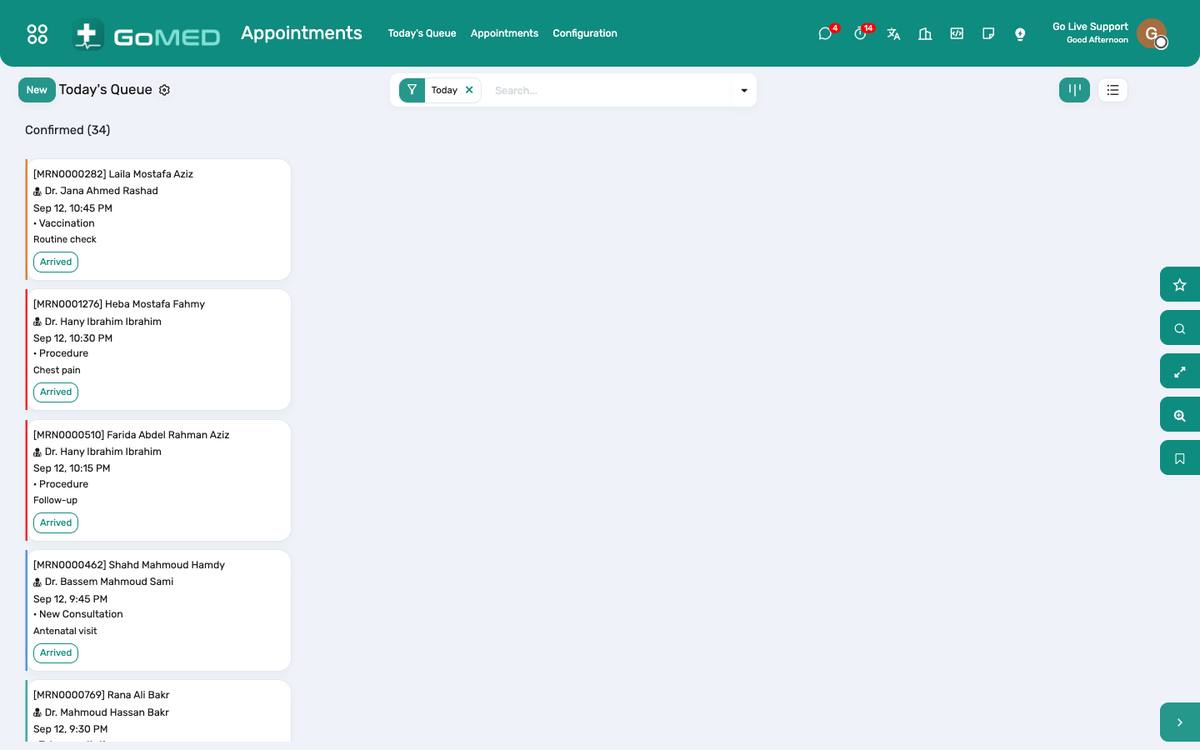
Where:Appointments › Appointments · Today’s Queue · Waiting Room Screen
Before you start
- Schedules
- Appointments › Schedules: for each practitioner, the weekdays, hours and slot length. Booking offers only the free slots.
- Appointment types
- Appointments › Configuration › Appointment Types: consultation, follow-up, procedure, vaccination, teleconsultation. Tick “Teleconsultation” on the video type.
- Video server
- Patients › Configuration › Settings › Video meeting server. The public Jitsi server works out of the box; a hospital with its own server points it there.
- Corridor screen
- Open /queue on the waiting-room television; add /<department id> to show one department only.
How to
Book an appointment
- Appointments › Appointments › New (or from the patient form › Appointments).
- Choose the patient, the practitioner and the type; the calendar shows the free slots of that practitioner’s schedule.
- Pick the slot; save. The patient receives an SMS confirmation if SMS is switched on.
- State becomes Confirmed.
Register a walk-in
- Appointments › Today’s Queue › Walk-in.
- Choose the patient (or register a new one) and the practitioner; the appointment is created at the current time and marked Arrived with the next token.
Arrive a patient and run the queue
- When the patient reports to the desk, open the appointment and click Arrive: the token is assigned and printed on the ticket.
- Today’s Queue lists the arrived patients per practitioner in token order with the estimated wait.
- The practitioner clicks Start consultation from the queue or the appointment; the visit opens with the history loaded.
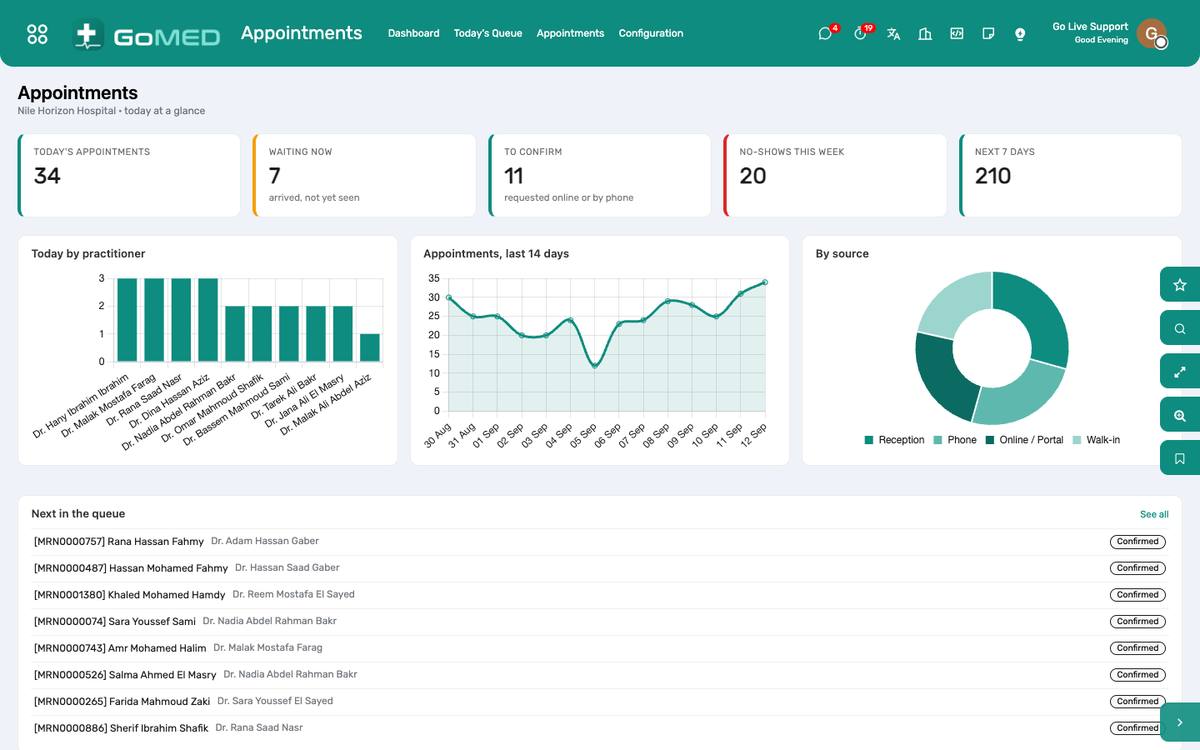
- No-show marks the ones who never came; the dashboard counts them per practitioner.
Reschedule or cancel
- Open the appointment; change the date or the slot and save, or click Cancel and give the reason.
- The patient gets a new confirmation (SMS) when the slot changes.
Hold a teleconsultation
- Book the appointment with the Teleconsultation type; a video room is created automatically.
- The patient sees the “Join the video visit” button on the portal and in the app from a few minutes before the time.
- The practitioner opens the appointment and clicks Join video; the visit starts and the room opens in a new tab.
- Document the visit as usual; there is no token and no waiting room for video visits.
Put the queue on the corridor screen
- Open the television’s browser at https://<hospital>/queue (or /queue/<department id>).
- The screen shows, per practitioner, the token now serving and the next ones; it refreshes every 15 seconds and needs no login.
- The patient sees the same information on the portal under Today, with their own token and the estimated wait.
Questions the desk asks
The patient wants a specific doctor who has no schedule that day.
Book on another day, or add a one-off slot under Appointments › Schedules; a booking outside the schedule is refused on purpose.
Where do online booking requests go?
Patient Portal › Portal Requests. Reception converts each into a confirmed appointment; the patient sees the status on the portal.
See also: Patients & Registration SMS Messages Patient Portal Visits (EMR)